In the N4 client, open the Advance Train Visit form for the outbound train: N4 client  Operations Rail Train Visits Train Visits view Actions Advance Train Visit Advance Train Visit form
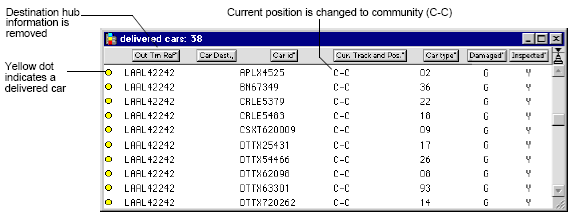
Once the outbound train departs your terminal, you deliver (depart) the outbound train. When you advance an outbound train visit to the Departed phase, N4 marks all the railcars associated with the outbound train as Inactive. In the XPS client, these railcars are listed in the Delivered Cars List and removed from the Available Cars List.
If you receive or plan containers for a train visit in the Departed phase, N4 displays a warning. You must recall the train if you need to correct any data to reflect the new plan. See Recall the train (on page 1) for more information.
N4 does not allow you to depart train that shares railcars also associated with another outbound train when the outbound train is in the Created, Inbound, Arrived, Working, or Complete phases.
If a railcar from a departed train is added to another train visit, N4 clears the previous train visit's Track and Pos values for that railcar.
To depart the train:
In the N4 client, open the Advance Train Visit form for the outbound train: N4 client Operations Rail Train Visits Train Visits view Actions Advance Train Visit Advance Train Visit form
From the Visit Phase drop-down list, select Departed.
If the drop-down list does not display the phase that you want to advance the train visit to, it indicates that you are skipping more than the recommended number of phases and must first select an intermediate visit phase. For example, you cannot advance from the Inbound visit phase to the Departed visit phase unless you select the Arrived and Complete phases first.
Specify the required date and time values for the start or end of the selected visit phase. For more information, see Entering dates and Entering time.
The Time Out value for the train visit's On-board containers is the same as the Actual Time of Departure (ATD) for the train visit.
If you specify a future date and time in the Actual Time of Departure field, N4 displays a dialog asking for confirmation to proceed. When you confirm, N4 accepts the future date and time.
Click Save. N4 delivers the railcars.
When you advance a train visit, N4 records the PHASE_RV event in the event history of the train visit. You can use the event to send a notice request to your customers, such as railroad operators. For more information about how to do this, open the Notice Request form in the N4 client, and click Help: Operations Reports General Notices General Notices view Notice Request form
To view the event details, use the Event History tab in the Train Inspector for the train visit.
Some important points:
When you advance an outbound or though train visit to the Departed phase:
For all railcar visits associated with the selected train visit, N4:
sets the Is Active field to False
clears the Position Slot field on the Outbound Railcars tab in the Train Inspector in the N4 client. This indicates that the railcars are no longer on the tracks in the facility.
removes the railcar’s hub and track/spot locations from the train window in the XPS client
displays a yellow circle in front of the delivered railcars in the train window in the XPS client
removes the delivered railcars from the Available Cars list: Train Available Cars List.
places the delivered railcars in the Delivered Cars list: Train Delivered Cars List.
For all the units On Board the selected train visit, N4:
Sets the visit state to Departed
When you advance the outbound or though train visit to the Closed phase, all units on board the train and all railcar visits associated with the train visit are no longer visible in the XPS client.
In the outbound train window in the XPS client, choosing Actions Remove Cars from Track delivers only the selected railcars, and sets the railcar position to community so it gets out of the way. Use this option only if there are complications with the train that don't allow you to deliver every railcar. See Actions drop-down list: outbound Train window (on page 1) for more information.